How to Print WhatsApp Messages: iPhone, Android, PC — and for Court
WhatsApp has no Print button. How to print WhatsApp messages from an iPhone, an Android phone or a PC — one message, the whole chat, or text messages for court, with photos in place and every page numbered.
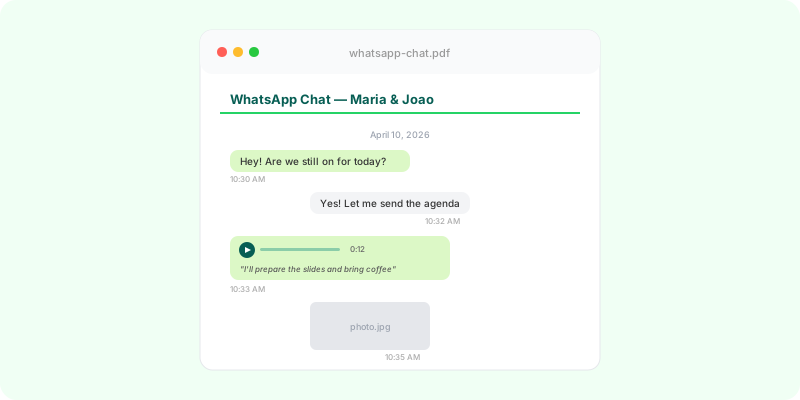
WhatsApp has no Print button, on the phone or on the computer. How you print WhatsApp messages depends on how many you need on paper: one message, a short exchange, the whole conversation, or the conversation with its photos and voice notes. Each case is below, for iPhone, Android and PC.
Print one WhatsApp message, or a few: screenshots #
For a single message, or an exchange that fits on a couple of screens, a screenshot is the quickest route.
- iPhone: press the side button and volume up together.
- Android: press power and volume down together (on some phones, swipe down and tap Screenshot).
Then print the screenshot from the phone’s photo app (its share or ⋮ menu, if the phone is set up with a printer), or send it to yourself and print it from a computer. Past a handful of screens, this stops working: each image is a different crop, not every message shows its date, and voice notes appear as grey bars.
Print WhatsApp messages from a PC: WhatsApp Web and Ctrl+P #
For a short exchange in WhatsApp Web, try Ctrl+P on Windows or Command+P on a Mac. If the browser opens its print dialog, inspect every page before choosing a printer or Save as PDF. This can serve when the preview contains the messages you need, with readable names, dates and photos. If it is blank or cuts off the exchange, use screenshots for a few messages or export the chat for a longer document.
A browser printout is a copy of the page it can render, not an export of the chat history. Messages that have not loaded, or that the page no longer keeps rendered, may be absent. Scrolling back to an older date does not guarantee that every message between that date and today will appear in print. Check the first and last messages, continuity and any media you need in the saved PDF as well as the preview.
If you need a longer conversation with media, follow the phone-export steps below. Choose Include media, transfer the export to your computer, then convert that file rather than printing the live browser page. See how to make a WhatsApp PDF with images and the complete sample PDF for the output layout. The PDF can contain only the messages and media present in the export; it cannot recover material missing from that file.
Print the whole WhatsApp chat: export it first #
To print a full conversation you need WhatsApp’s export, and export only exists in the phone app — not on WhatsApp Web or the desktop app.
- Open the chat on your phone.
- Android: tap ⋮ → More → Export chat. iPhone: tap the contact or group name → Export chat.
- Choose Include media if you want photos and voice notes, then save or send the file.
Step-by-step guides: Android and iPhone. If the option isn’t there, see Export chat missing or not working.
You now have a .txt file (or a .zip holding the .txt and the media). You can print the .txt as it is, but it prints as raw lines — date, time, name and message run together — with file names where photos were and nothing where voice notes were said. Fine for a short chat, hard to read for a long one.
The whole chat as a document you can print #
To print the conversation as a readable document, upload the .zip to Zap2Doc. You get an A4 PDF with:
- every message in order, with the sender’s name, date and time;
- photos and PDF attachments shown where they were sent;
- voice notes transcribed in place, marked as transcriptions;
- page numbers at the bottom of every page, so the printout stays in order and can be cited by page;
- emoji drawn as emoji, and numbers — amounts, account numbers, phone numbers — printed exactly as they were typed;
- dates written the way the conversation writes them, so a day-first chat doesn’t print month-first;
- a cover page with the participants, the period and the SHA-256 of the export the PDF was made from.
Most conversations are ready in under a minute. A long one with hundreds of voice notes takes a few minutes, because each one is transcribed.
You can choose a date range before converting, which matters for printing: a chat that runs for years can be hundreds of pages, and you rarely need all of them. The preview is free, so you can see the layout before paying. See a sample PDF explained part by part.
Printing on a PC or at a print shop #
The export is made on the phone, but the printing doesn’t have to be:
- Export the chat on the phone and send the file to yourself (email, Google Drive, iCloud).
- On the computer, upload it to Zap2Doc and download the PDF.
- Print the PDF from any PDF viewer — or take it on a USB stick or by email to a print shop, which will print a PDF as it is.
Printing text messages for court #
Court forms and lawyers usually call these “text messages”, whichever app they were sent in. A few practical points:
- Print the whole relevant period, not selected messages. A reader who sees the full context doesn’t have to wonder what was left out. You choose the date range before converting, so “the whole period” doesn’t have to mean the whole chat.
- Keep the original export (
.zipor.txt) and the phone. The printout is a copy of what they contain, and you may be asked for the original. - Ask what format they want before printing hundreds of pages. Many prefer the PDF file itself; the page numbers let anyone point at a specific message.
- Voice notes can go on paper too. They are transcribed in place and marked as transcriptions, so a spoken agreement isn’t missing from the printout.
For the preparation that comes before printing, see organizing evidence for small claims court or for family court.
The PDF is a presentation of your export. It isn’t authentication, a forensic report, a chain of custody or legal advice. For preparing a chat for a lawyer, see organizing WhatsApp chats for lawyers.