Export a WhatsApp chat to PDF with images
Turn a WhatsApp ZIP export into a readable PDF with photos beside the messages and voice notes transcribed. Export with media, check the preview and choose your date range.
 Watch the Zap2Doc desktop walkthrough
Watch the desktop walkthrough on YouTube: upload the export, check the preview, choose the period and download the PDF after payment. The checkout itself is omitted from the video. The written steps below explain the same workflow.
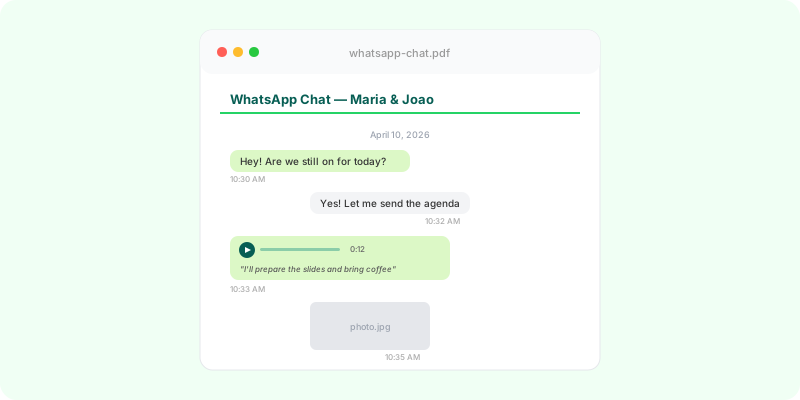
WhatsApp chat to PDF — with images, not just text #
WhatsApp’s built-in export gives you a .txt file plus separate media files. That’s not very useful: photos lose their context to the conversation, file names like IMG-20260315-WA0042.jpg say nothing on their own, and nobody wants to click through hundreds of separate files just to follow a thread.
What you actually need is a single PDF where photos appear right where they were sent — next to the message, with the timestamp and sender intact.
Why the default isn’t enough #
The .txt file looks like this:
[15/03/2026, 14:32:08] Carlos: IMG-20260315-WA0042.jpg (file attached)
[15/03/2026, 14:32:15] You: Perfect, thanks!You can see that an image was sent — but not which one. Reconstructing the context means jumping between the text file and a folder of photos. That doesn’t work for reading, sharing with someone, archiving, or showing customer support what was actually agreed.
How Zap2Doc solves it #
Zap2Doc takes your WhatsApp export (the .zip with media included) and produces a single PDF where:
- Images appear inline — embedded in the chronology, right next to the message
- Voice notes can be transcribed — the text appears where each note belongs, marked as a transcription
- PDF attachments are preserved — as a thumbnail in the document
- Timestamps and senders are visible — no more guessing who sent what when
Nothing to install. You upload a copy of the export over an encrypted connection. The uploaded ZIP and preview are normally deleted after 24 hours; the delivered PDF is available for 7 days. Keep your own copy if you need it later.
Only photos, no voice notes? #
That is the most common export, and it needs nothing extra. A chat with no voice notes becomes the same PDF: every photo the export contains, in the order it was sent, with the sender’s name and the date and time beside it. The transcription choices only appear when the export has audio — without audio there is nothing to pick, and one price covers whatever period you select.
If you searched for a way to put WhatsApp photos into a PDF, this keeps what a loose folder of images loses: who sent each one, when, and what was said around it.
How to export the chat the right way (with media) #
For images to end up in the PDF, you need to choose “Include media” when exporting from WhatsApp — otherwise you get text only.
On Android:
- Open the chat in WhatsApp
- Tap the menu (
⋮) → “More” - Tap “Export chat”
- Choose “Include media” — this step is critical
- Save the
.ziplocally or email it to yourself
On iPhone:
- Open the chat in WhatsApp
- Tap the contact name at the top
- Scroll down and tap “Export Chat”
- Choose “Attach Media” — without this step, all photos are missing
- Save to Files or share via email
For the full export steps, see Android or iPhone. If the option is missing or the export leaves out messages or media, see Export chat missing or not working.
Which file should you upload? #
Upload the ZIP containing the conversation text and its media together. Sending only the .txt to a text-to-PDF converter cannot put the photos back: the text holds attachment names, not the images themselves. A folder of photos alone also lacks the messages that establish their place in the conversation.
If your phone saves a ZIP, keep it intact. Transfer that file to the computer without extracting it or moving attachments out of it. If the sharing method gives you separate files, use the export guide for your phone to save the conversation and media together before uploading. Renaming a .txt to .zip does not turn it into an archive.
From ZIP to PDF: check the preview first #
- Upload the export at Zap2Doc. You can do this on your phone or transfer the ZIP to a computer first.
- Check the free preview and file summary. Look at the message count, date range, image count and measured audio duration. The one-page preview shows the layout; it does not show every photo in a long conversation.
- Choose the period you need. For the whole available export, keep its full date range. For a specific exchange, check that your selection includes the messages before and after it that supply context.
- Review the transcription option and price, then pay if you want the complete document. The included audio duration depends on the option you choose. Afterwards, download the PDF and check the relevant dates and attachments before sharing it.
Open the sample PDF to see the layout without uploading a conversation, or read the sample explained part by part.
Does the PDF include the entire chat? #
It includes the selected period from the export you supplied. A chat visible on your phone may contain older messages or media that WhatsApp did not include in the export. Check the export’s earliest and latest dates rather than assuming they match the phone’s full history. Zap2Doc cannot recover messages or attachments absent from the file.
If the summary reports no images when you expected photos, check that you exported with media and uploaded the archive containing those files. An attachment name in the conversation does not prove the corresponding file is in the ZIP. Missing or unreadable attachments may be shown as file references rather than embedded previews. Transcriptions also depend on available, readable audio and the duration covered by the selected offer.
What ends up in the PDF #
- Cover page with participants, date range and totals (messages, images, audio minutes), and the SHA-256 of the export the PDF was made from
- Chronological messages, grouped by date, sender and time visible per block
- Inline images, embedded in the order they were sent
- Voice-note transcripts, within the selected offer’s duration, placed where the voice note was sent and marked as transcriptions
- Embedded PDF attachments as previews
- Numbers exactly as they were typed — amounts, account numbers, phone numbers, order references
- Emoji drawn as emoji, not dropped or replaced by boxes
- Dates in the conversation’s own format, so a day-first chat never prints month-first
- Page numbers on every page, so a specific message can be pointed at
The PDF is fully searchable — Cmd+F or Ctrl+F finds any message or transcribed audio, emoji included.
Most conversations are ready in under a minute; a long one with hundreds of voice notes takes a few minutes, because each one is transcribed.
Every order also includes the conversation as a Markdown file, if you want to work with it in ChatGPT or Claude.
What people use this for #
- Documenting orders and deliveries when the seller confirmed in chat
- Negotiation records between business partners, including all the product photos that were exchanged
- Family archives — preserving important threads before a phone change
- Professional documentation — consulting threads, client communication, project handoffs
- Hand-over records with photos — apartment move-out, vehicle sales, repairs. Renting? See how to organise your photos for check-out and a deposit dispute Bought a used car that developed a fault? See organising the chat with the dealer.
In all of these, a bare .txt loses the visual context that made the conversation make sense. With images in their right place, the document still reads cleanly months later.
If the document is going to a court, a lawyer or a consumer body, see how to organize WhatsApp messages as evidence — and how to print it if you need it on paper.
Privacy #
- The transfer runs over an encrypted connection
- The uploaded
.zipand preview are wiped after 24 hours - The final PDF stays available for 7 days, then it’s also wiped
- Nothing is processed against your media without payment
For the full picture of what happens to your file, see is it safe to upload a WhatsApp chat?
Free preview before paying #
At Zap2Doc you upload the export and immediately see a free single-page preview with stats (messages, audios, images). You decide afterwards whether to run full processing with images and audio transcripts.
Upload your WhatsApp ZIP and check the free preview →
Related guides:
- WhatsApp chat to PDF — overview — the general walkthrough
- WhatsApp audio transcription — how voice notes become readable
- How to export WhatsApp on Android — detailed steps
- How to export WhatsApp on iPhone — detailed steps