How to Save a WhatsApp Conversation (5 Methods Compared)
Every way to save a WhatsApp conversation permanently — cloud backup, chat export, screenshots, PDF conversion. Which method fits your use case?
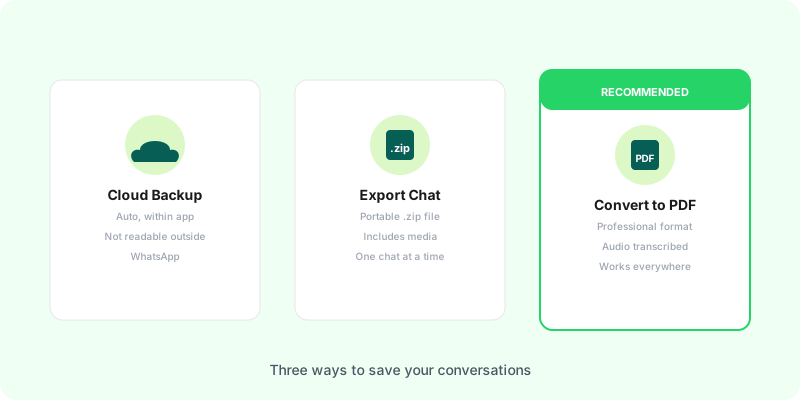
There are five realistic ways to save a WhatsApp conversation, and the right one depends on what you’re trying to do — restore it on a new phone, share it with someone, archive it for a legal matter, or just keep a copy. This guide breaks down each method, when to use it, and when not to.
Quick comparison #
| Method | Readable outside WhatsApp? | Shareable | Cross-platform (iOS ↔ Android) | Includes voice transcription | Best for |
|---|---|---|---|---|---|
| Cloud backup (iCloud / Google Drive) | No | No | No | No | Switching phones on same OS |
| Chat export (.zip) | Partially (raw text only) | Yes | Yes | No | Keeping a raw copy |
| Screenshots | Yes (but lossy) | Yes | Yes | No | A few key messages |
| Third-party backup apps | Varies | Varies | Usually no | No | Paranoid redundancy |
| Convert to PDF | Yes (clean document) | Yes | Yes | Yes | Sharing, archiving, reading later |
Method 1: Cloud backup (iCloud on iOS, Google Drive on Android) #
The default WhatsApp backup.
How to enable:
- iPhone: Settings → Chats → Chat Backup → Back Up Now (or set Auto Backup)
- Android: ⋮ → Settings → Chats → Chat backup
What it does: saves everything to your cloud account so you can restore it when you install WhatsApp on a new phone.
The trap: backups are only readable by WhatsApp itself. You can’t open them, search them, share them, or even view a single message without restoring the entire backup onto a phone. And iCloud backups can’t be restored on Android, and vice versa. If you’re switching platforms, the backup is effectively useless.
Use it for: safety net when upgrading phones on the same OS. Don’t use it for: sharing, archiving, anything where you need to see the messages outside WhatsApp.
Method 2: Chat export (the .zip file) #
The “real” export that puts your conversation into a file.
How to export:
- iPhone: open the chat → tap the contact/group name at the top → scroll down to Export chat → Include Media or Without Media
- Android: open the chat → ⋮ → More → Export chat
Full platform-specific guides: iPhone / Android.
What you get: a .zip containing:
_chat.txt— the raw conversation as plain text- media files (photos, videos, voice messages as
.opus) if you chose Include Media
What’s good: it’s the only official format that lives outside WhatsApp. Works cross-platform. You own the file.
What’s not: the .txt file is hard to read (no images inline, no formatting, no transcripts). Voice messages sit as unreadable .opus files that most players won’t even open natively.
Use it for: keeping a raw archive, or as the input for other tools (like Zap2Doc).
Method 3: Screenshots #
Old-school, but sometimes the right answer.
How: hold Power + Volume Down (Android) or Power + Home/Side (iPhone). Or select a message → forward → you can copy text.
What’s good: zero friction, works for a few messages, shareable as images.
What’s not: terrible for a real conversation. 500 messages = 50 screenshots. No search, no text selection, no context. Image files degrade if compressed.
Use it for: one or two key messages you want to quote or share. Don’t use it for: anything longer than a few messages.
Method 4: Third-party backup apps #
A few tools try to bridge the cloud-backup problem (e.g., backup Android WhatsApp → restore on iPhone). Most of them are fragile, often paid, occasionally shady. Some have been taken down by WhatsApp’s anti-automation enforcement.
The honest take: unless you’re specifically migrating between iOS and Android and have no other option, avoid these. You’re giving a third party access to your entire WhatsApp history, often with unclear data-handling policies.
Method 5: Convert to PDF #
The modern answer when you want to read, share, or archive the conversation as a document.
How it works:
- Export the chat as a
.zip(Method 2) - Upload the
.zipto Zap2Doc - Get a PDF with messages in chronological order, images inline, voice messages transcribed to text, date range filter
What’s good:
- Readable by anyone on any device — no WhatsApp required
- Voice messages transcribed automatically (OpenAI transcription)
- Searchable with Ctrl/Cmd+F
- Shareable by email, cloud drive, print
- Cross-platform — same PDF works regardless of which phone the chat came from
- Permanent — the PDF outlives WhatsApp version changes
What’s not:
- Paid conversion (one-time, no subscription)
- Requires internet (upload to service)
Use it for: sharing a conversation with someone who doesn’t have WhatsApp, archiving important exchanges, legal documentation, keeping a copy you can actually read.
If the voice notes are the part you care about, this covers the transcription side in detail: what the transcribed output looks like, how accurate it is, and how long a chat takes to process. If you’re saving the conversation to file a complaint, this one covers what to bring and in what form.
Which should you use? #
- “I’m switching iPhones/Androids next week” → Method 1 (cloud backup)
- “I want a raw copy I own” → Method 2 (
.zipexport) - “I need to quote a couple of messages” → Method 3 (screenshots)
- “I need to share or read the whole conversation outside WhatsApp” → Method 5 (PDF)
- “All of the above, for important conversations” → Method 1 + Method 5 together
The combination that covers the most cases: enable cloud backup as safety net, and convert your most important conversations to PDF. Cloud backup handles catastrophic loss; PDFs handle everything else.
FAQ #
Does saving a chat require both people’s consent? Exporting saves your own copy of a conversation you’re already a participant in. Laws vary by country on how that saved copy can be used (especially for legal or business purposes) — when in doubt, consult a lawyer.
Can I save a deleted message?
If the message was deleted after you read it, it’s still in your phone’s local database until you clear it. Exporting immediately captures it in the .zip. Once the chat is cleared on your device, it’s gone.
Does iCloud backup include voice messages? Yes, but you can only access them by restoring the backup onto an iPhone with WhatsApp installed. You can’t extract individual voice messages from a cloud backup.
What’s the cheapest way to save a conversation permanently?
Method 2 (.zip export) is free. Method 5 (PDF) adds readability and transcription on top of it for a one-time fee.
Can I save a WhatsApp conversation as text only?
Yes — Method 2 with Without Media produces a pure text file (_chat.txt). Tiny file, easy to archive, but no images or voice content.
Related reading: WhatsApp voice message transcription · How to convert WhatsApp chat to PDF · Complete WhatsApp backup guide