Where Is My WhatsApp Export Saved? (Android and iPhone)
WhatsApp doesn't save an export to a folder by itself: it opens the share sheet. Where the file ends up on Android and iPhone, how to find it, and how to save it where you can reach it.
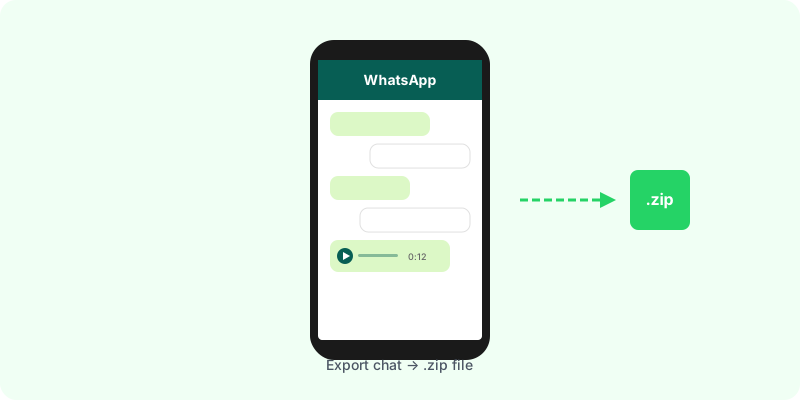
After you tap Export chat, WhatsApp doesn’t drop the file into a folder. It builds the export and then opens your phone’s share menu. The file goes wherever you pick there, and if you close that menu, it goes nowhere.
On Android #
When the share menu opens, pick one of these:
- Files by Google → Save (or your phone’s file manager): the file lands in Downloads unless you choose another folder.
- Drive: it’s uploaded to your Google Drive, in My Drive unless you pick a folder.
- Gmail or another email app: it’s attached to a new message. Send it to yourself.
To find it later: open Files by Google → Downloads, or search for WhatsApp Chat. The file is named after the chat, for example WhatsApp Chat with Ana.zip.
On iPhone #
When the share sheet opens:
- Save to Files: choose On My iPhone or iCloud Drive, then a folder. This is the most reliable option.
- Mail: the file is attached to a new email.
- AirDrop: send it straight to your Mac.
To find it later: open the Files app → Recents, or search for WhatsApp Chat.
If the file doesn’t show up #
- You closed the menu. Export again and choose a destination.
- The email bounced. A
.zipwith media is often too big for an email attachment. Save it to Files or a cloud drive instead. - It’s still exporting. A long chat with many photos takes a while; wait for the share menu before switching apps.
- The option is missing. See WhatsApp “Export Chat” missing or not working.
Getting it to a computer #
- Android → Windows/Mac: save to Google Drive and download it on the computer, or connect a cable and copy it from Downloads.
- iPhone → Mac: AirDrop, or iCloud Drive.
- iPhone → Windows: save to iCloud Drive and open icloud.com, or email it if it’s small.
Once you have the file #
What’s in it and how to open it is in I exported a WhatsApp chat and got a .zip file. Now what? If you need it as a readable document, Zap2Doc works straight from your phone: upload the .zip from Files or Drive and get a chronological PDF, with photos in place and voice notes transcribed. You see a free preview before paying.