How to Search Inside WhatsApp Voice Messages
WhatsApp search only finds typed text, never what was said in a voice note. How to make every voice message searchable: transcribe the chat's audio and search the text.
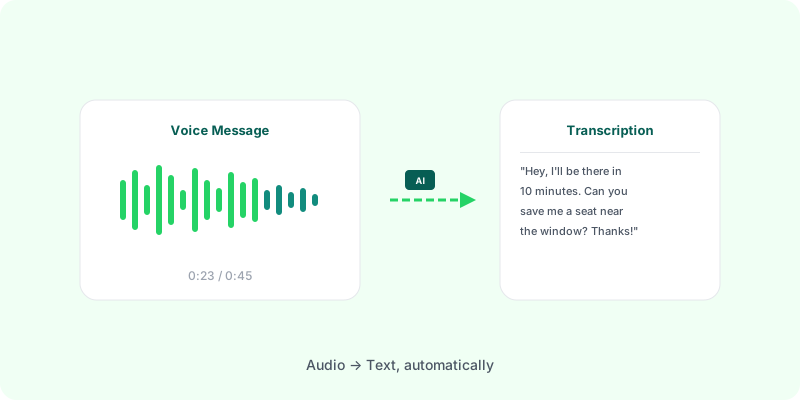
You remember someone said the address, the amount or the date. You just don’t remember which of the 60 voice notes it was in. WhatsApp search won’t help: it only finds what was typed.
Why voice notes are invisible to search #
A voice note is an audio file. WhatsApp’s search indexes text, so anything said aloud is outside it. Even with WhatsApp’s own transcripts turned on, they’re generated one note at a time on demand, and they don’t feed the search.
The only way to search what was said is to turn the audio into text first.
Making every voice message searchable #
- Export the chat with media. Every voice note comes along as an
.opusfile, and the chat text records when each was sent. Guides: Android, iPhone. - Transcribe all of them. Upload the
.zipto Zap2Doc; it transcribes every voice note and audio file in the chat. - Search the result. Open the PDF and press Ctrl+F (Windows) or Cmd+F (Mac), or use the search in your phone’s PDF viewer.
Each hit lands on the transcript under its message, with the sender, the date and the time, so you also see what was said around it.
Tips for finding things #
- Search for the stem of a word (
deliverfinds delivery, delivered). - Try numbers both ways: a spoken amount may be transcribed as
500orfive hundred. - Names may be spelled differently than the person writes them; try a short part of the name.
- Use the Markdown file Zap2Doc delivers alongside the PDF if you want to search in a text editor or paste the conversation into another tool.
Beyond search #
Once the voice notes are text, you can also quote them, print them, and send the conversation to someone who needs to read it rather than listen to an hour of audio. See how to transcribe all WhatsApp voice notes at once.