WhatsApp Chat Backup Guide: 3 Ways to Save Your Conversations
WhatsApp Chat Backup Guide
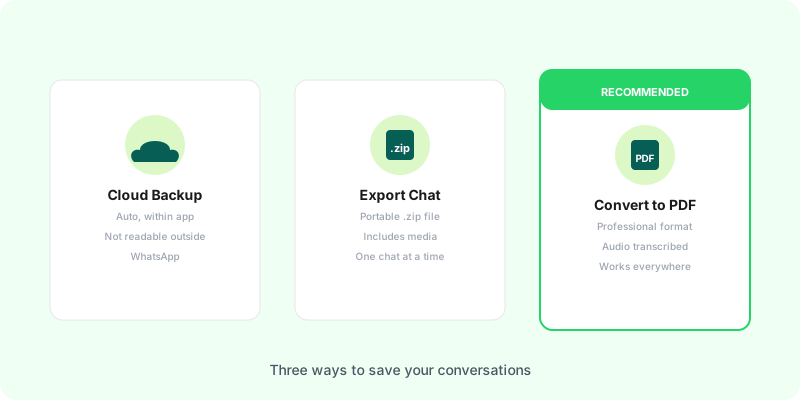
Losing WhatsApp conversations when switching phones is a common frustration. Fortunately, there are several ways to back up your chats — each with different trade-offs depending on what you need.
Option 1: WhatsApp Cloud Backup (iCloud / Google Drive)
This is the most convenient option for most people.
How it works:
- On iPhone: Settings → Chats → Chat Backup → Back Up Now
- On Android: Settings (three dots) → Chats → Chat Backup → Back Up
WhatsApp backs up your entire chat history — all conversations, media, and voice messages — to iCloud (iPhone) or Google Drive (Android).
Pros:
- Completely automatic — can be set to daily, weekly, or monthly
- Restores everything when you set up a new phone
- Includes all media
Cons:
- Only works within the same ecosystem (iCloud backups don’t restore to Android and vice versa)
- Consumes cloud storage space
- Not accessible as a readable file — you can only restore it to WhatsApp
Best for: Regular backups before switching phones within the same OS.
Option 2: Export Individual Chats
For specific conversations you want to preserve or share.
How it works:
- Open the chat → tap the contact/group name → Export Chat (iOS)
- Open the chat → three-dot menu → More → Export Chat (Android)
Pros:
- Works for specific chats without backing up everything
- Produces a
.zipfile you can store anywhere - Can include or exclude media
Cons:
- Raw
.txtfile is hard to read - Voice messages are
.opusfiles — not easily playable - No formatting, no images displayed inline
Best for: Preserving a specific conversation to archive or share.
Option 3: Convert to PDF
Turn your exported chat into a polished, readable document.
How it works:
Export the chat as described in Option 2, then upload the .zip to Zap2Doc. Within minutes you get a properly formatted PDF with:
- All messages, timestamps, and sender names
- Inline image thumbnails
- AI-transcribed voice messages
Pros:
- Readable by anyone, on any device
- Searchable — find any message by keyword
- Voice messages become text you can actually read
- Professional format for archiving
Cons:
- Requires the export step first
- Small one-time cost per conversion
Best for: Conversations you want to archive permanently, review, or share with others.
Best Practices
- Use cloud backup as your safety net — set it to weekly automatic backups.
- Export important chats periodically — don’t rely solely on cloud backups for conversations that matter.
- Convert to PDF for permanent archiving — PDFs outlast apps, phones, and platform changes.
The combination of cloud backup (for convenience) and PDF conversion (for important chats) covers almost every use case.
Start preserving your conversations at Zap2Doc.