How to Export a WhatsApp Chat on iPhone
How to Export a WhatsApp Chat on iPhone
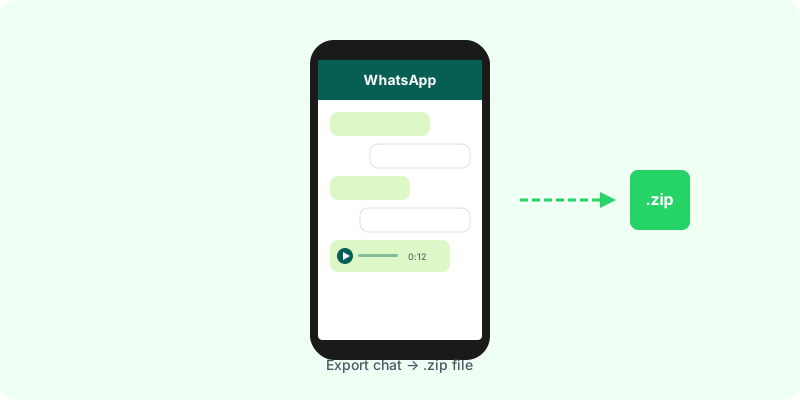
Exporting a WhatsApp chat on iPhone is straightforward once you know where to look. Whether you want to save an important conversation, share it with someone, or convert it to PDF, here’s exactly how to do it.
Step-by-Step Instructions
- Open WhatsApp and navigate to the chat you want to export.
- Tap the contact name or group name at the top of the screen to open the Contact Info or Group Info page.
- Scroll down and tap Export Chat.
- A dialog will appear asking: “Attach Media?”
- Choose Include Media to export messages plus photos, videos, and voice messages.
- Choose Without Media for a text-only export (much smaller file).
- The iOS Share Sheet will open. You can:
- Send it via email to yourself
- Save it to Files (iCloud Drive or On My iPhone)
- Share it to any other app
What You Get
The export produces a .zip file containing:
_chat.txt— all messages with timestamps and sender names- Media files:
.jpgfor photos,.mp4for videos,.opusfor voice messages
Note on voice messages: WhatsApp exports voice messages as
.opusfiles. This format isn’t playable by default on most computers, but tools like Zap2Doc can transcribe them automatically using AI.
File Size Tips
- A text-only export is usually just a few kilobytes — even for years of messages.
- Including media can produce files ranging from a few MB to several GB for active group chats.
What to Do With Your Export
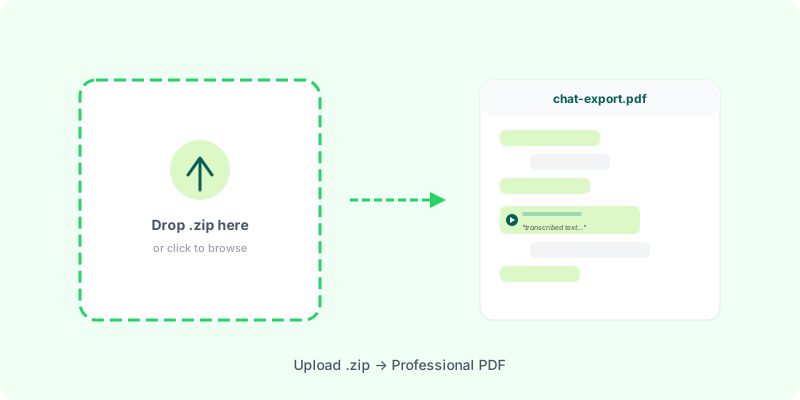
Once you have the .zip file, you can convert it into a clean, professional PDF with Zap2Doc. Upload the file, get an instant preview with stats (message count, images, audio), and download a formatted PDF — including AI-generated transcriptions of all voice messages.
No installation needed. Works on any device.